


 Reply With Quote
awesome simply awesome, ive moved it to the Deniska news forum and will try and get more exposure
Results 1 to 10 of 333
-
April 18th, 2007, 06:25 #1DCEmu Newbie


- Join Date
- Dec 2006
- Posts
- 33
- Rep Power
- 0
 PSPnavi: How to turn your PSP into a GPS Navigation System or a Map Viewer
[Tutorial][Newbie Proof] PSPnavi: How to turn your PSP into a GPS Navigation System or a Map Viewer
PSPnavi: How to turn your PSP into a GPS Navigation System or a Map Viewer
[Tutorial][Newbie Proof] PSPnavi: How to turn your PSP into a GPS Navigation System or a Map Viewer
Well all the waiting has finally paid off; I got the gpsp cable today and read a few other forums on what I needed to do to make this happen, I did not find any tutorials on how to fully implement this anywhere else, so here’s my write up on how its done:
DIGG THIS
1.What you need to havea. A homebrew capable PSP (though tutorial explains how this works with DAX’s custom firmware only).b. A self-powered GPS receiver (not all models have been tested) or you can use the PSP’s official receiver (PSP-290)c. A PSP to GPS cable (not needed if you are using PSP-290):
i.You can make your own by going to this link: http://www.dcemu.co.uk/vbulletin/showthread.php?t=30035
I AM NOT RESPONSIBLE IF YOU BRICK YOUR PSP OR YOUR GPS RECIEVER WHEN BUILDING YOUR OWN CABLE.
ii. Buy a factory made PSP to USB B mini cable from www.moby.cnd. Deniska’s Mapthis! Mapping software: http://deniska.dcemu.co.uk/bin/mapViewer_v03.zip2. What you need to do
e. Mapthis! 0.4 EBOOT.PBP: http://www.sendspace.com/file/qr7uks
f. In7ane’s Map Downloader: http://www.sendspace.com/file/90i8iu
g. PSP Car stand (optional)a. Copy the mapViewer and mapViewer% folders from the mapViewer_v03 (in step 1(d)) folder to your game folder on your memory stick and make sure your kernel is set to 1.50 if you have any gps pther than the psp-290 (please refer to the FAQ in Deniska's discussion forum for important details on making this work with psp-290)3. Creating Points of Interests (POIs)
b. Copy the appropriate EBOOT file (depending on if u have a HOLUX GPS(or any other non psp-290) receiver or PSP-290) from the mapthis! 0.4 file you downloaded in step 1(e) into the mapViewer folder on your memory stick (overwrite the current one).
c. Copy the ‘system’ folder from the the mapthis! 0.4 file you downloaded in step 1(e) into the mapViewer folder on your memory stick (overwrite the current).
d. Start up your PSP to make sure the application runs fine and mess around with the sample map included of the London Tube. (if the app doesn’t run refer to the troubleshooting section)
e. Now that you have the mapping software, you need to download the map of the area you want to navigate through. Extract the File you downloaded in step 1(f) and go to GMDL/bin/Debug and run ‘Global Map Download Tool’ you should get the following screen: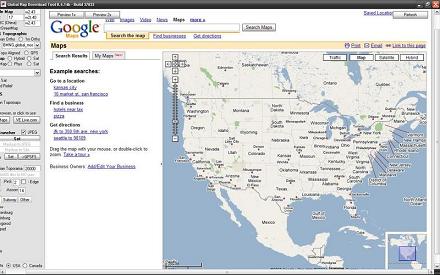
f. Choose which website you want to get your map from the menu on the left e.g Google maps, Google maps satellite, VE map(MSN maps) etc.

g. Move and and zoom to the map until the area you see is what you want to put on your psp, for example if I wanted to put the map of Toronto on my psp I’d zoom to until I get the coverage I need: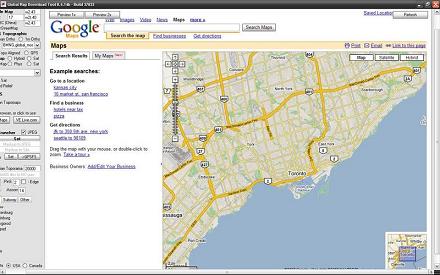
To ensure you are getting exactly the area you want, you get the map to the approximate area you want, then click on the 'Preview 1x' button - That will show you what you will actually be getting on your PSP.
h. Now scroll to the top of the window and name your map in the ‘Map Name (start with _)’ . I know its obvious but make sure to start with an ‘_’ when naming your map e.g. I want to name my map Toronto I’d type _Toronto in the field.
i. If you don’t live in USA or Canada ignore this step. Now scroll down until the end of the menu on the left and check the geodata marker and USA or Canada depending on where the map your downloading is located. If you don’t live in USA or Canada ignore this step. The geodata of a map contains stuff like addresses, points of interests etc, Canada doesn’t have as much as the USA though.
j. Scroll up and click on the ‘Download the map’ button. You should get a popup, wait for the tiles to load and then your screen should look like this: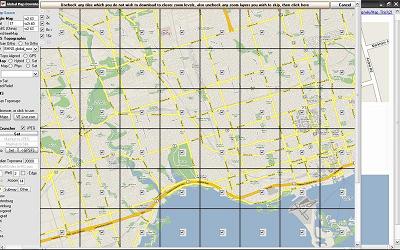 To reduce the size of the map file uncheck any tiles that you don’t want available on the map, for example I just uncheck the ones that contain only water. Then uncheck the Zoom levels that you don’t need, all zoom levels are checked by default. When you’re done click on the ‘Uncheck any tiles which you do not wish to download to closer zoom levels, also uncheck any zoom layers you wish to skip, then click here’ button (longest button I’ve ever seen). It should take you back to the main window and go on the preview tab. The download progress is displayed on the Title bar of the window: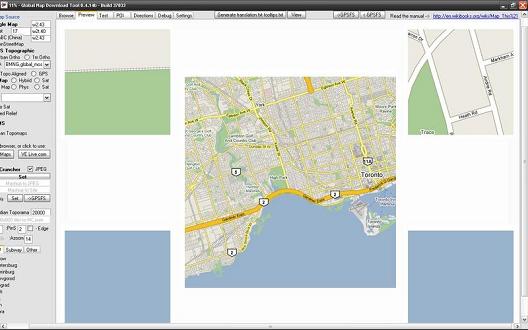
k. After the download is done depending on whether you checked the geodata option earlier, you either get a geodata window in which the program will automatically start downloading the geodata for the map and then another window will popup saying ‘you may now close this window’ or it will finish the the download and tell you that it finished creating the map.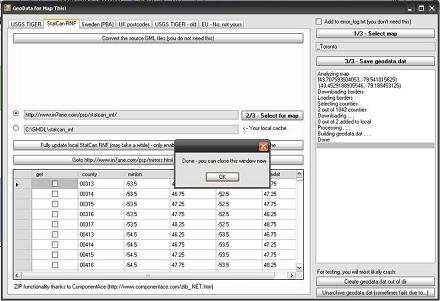
l. After its done downloading the map. Close the application and copy the map folder (_Toronto in my case), located in GMDL/bin/Debug to the maps folder located in the mapViewer folder on your psp game file. My map was 23 mb in size; it varies depending on what type of map you choose (hybrid, sat etc) and the area you downloaded etc.
m. Go back to your psp, run the app and choose the map you just made, see if it works, try zooming going to the edges etc.
To build a hybrid map, follow the guides set up for a normal map, then uncheck "auto browser" and choose MS VE on the left menu bar. Wait for the MS map to load, then zoom in on the location as usual. Once there, choose "hybrid" next to VE Map on the left menu bar, and choose the hybrid button on the MS map page. Now you should be able to pull up the preview 1x and see the following:


(credit goes to ST240sx for the Hybrid map section)
And this is what you'll see after you generate the map using the normal method, and loading it on the PSP.
Points of interests are points on a map that symbolize a certain location that you would like to be mared on the map.a. In GMDL, go to the ‘POI’ tab4. Creating a trip with directions for use with Mapthis!
b. Choose a POI using any of the maps OR download a file in KML (google map format), CSV (garmin format) or OV2 format that contains a list of POIs.
c. Enter the name of the POI collection starting with and underscore in the Save POI field.
d. Click on the ‘Save POI(start with _):’ button and copy the generated file in to the map folder you created earlier.
Creating POI Files in GMDL (credit goes to ST240sx):
The first step as described in the guide was to click on the POI tab at the top. Once the map loaded, zoom in until you have the entire city in the view. You'll want this so you'll get all the results, which you can simply add to existing maps of the area, and this will only display POI's for that map (did that make any sense?) Anyway...moving on.
Next, click on the "Get Numbers" box on the right menu near the top. You'll see all of the Lat & Lon for the area appear. Now type your search topic in the "seach for" box at the top of the right menu (not the web page). In my case, steak house, and then click the "List" box midway in the right menu, and wait for the list to load at the bottom (this may take a minute).
Once you have the list, use the scroll bar to reach the last entry and shft+click to highlight them all. Now change the "Icon" with the drop down, and give the POI list a title always beginning with "_" (I chose _DALLASSTEAKHOUSES for mine) and click "Save POI".
The save defaults to the debug folder in the MapThis!\GMDL\bin\Debug directory. You can now copy this to any existing or future maps of this same area, no matter how large, or small you make your map. The program will only display the POI's for the area you chose.
NOTE: This is a better copy created by The-Avenger, all credit goes to him.5. Connecting a GPS receiver to the PSP to enable tracking and navigation.
a. Start GMDL
b. Click the directions tab up the top.
c. Next to the list button, select 'Google'.
d. Change to maps.google.com to the appropriate address matching your country/where you live.
e. In the actual Google Webpage (on the left) press 'get directions' link.
f. In the 2 boxes that appear, type in the starting location in the first box, and the ending location in the second box. (Enter as precise as possible)
g. If went fine, you should see a line on the map going from the two locations, and directions on the left.
h. Type in the 'from' box on the right (not the google webpage, the GMDL feature on the right) whatit says on the left after 'From:'(that is on the google webpage).
i. Type in the 'to' under the 'from' box (The GMDL feature, not the google webpage) on the right what it says on the left after 'To:' (On the google webpage).
j. Press the 'Get Values' button.
k. Press the 'List' button.
l. If all went well, the directions down the bottom right should be the same on the left in the google webpage. (Please ignore the MIDPOINT things.)
m. Type in a name after the 'Save POI (start with _):' button. Such as: _To My Mum's House
n. Press the 'Save POI (start with _):' button.
o. The file should be in the debug folder.
p. Drag that file into the map folder that it belongs to in your PSP MMS.
a. Go to ms0:PSP/GAME/mapViewer/system and open the config file using notepad.Troubleshooting
b. Change the baudrate depending on the one that your gps reciever uses, if u don’t know, its usually in the manual of it in the specifications section.
c. Change the speed fix depending on if you want your speed values to be in mph or kph.
d. Change the altfix dependnig on if you want it in feet or metres.
e. Change your time zone offset of the GMT in your area
f. Leave everything else for now.
g. Disconnect your psp and run Mapthis! And connect your GPS reciever to your psp via he cable you bought or made (refer to the ‘What you need to have’ section)
h. Press square to acivate GPS mode, the map should scroll until your location is in sight. Drive around to make sure the values of in the side panel are accurate.
i. Mess around with the application to find out what buttons do what (not while driving of course)Q: Mapthis! won't start, what’s wrong?I’ll update this section as new problems and solutions arise. Feel free to ask me any questions and I will be glad to answer them. Remember I am new to this too so not all problems are covered in this tutorial but it will be frequently updated.
A: Make sure you are running the 1.50 kernel and that you copied the right EBOOT in the right place.(This app has only been tested with 3.03 OE firmware not 2.71 SE)
Q: The Global Map Downloader application will not start, what’s wrong?
A: You need to have .NET framework 2 or higher installed.
Q: The area coverage I chose in GMDL doesn’t match the map it created, why?
A: This happened to me too, just make the area in GMDL bigger to ensure the map on your psp has all the area you need.
From member PDG, all kudos goes to him:
Q: Do you need .prx files for your PSP-290 GPS? Want to know how to extract them?
A: -=[Click here for PDG's flash guide]=-
Q: How do i get MapThis + PSP-290 GPS and my maps working?
A: -=[Click here for a guide]=-
Q: Can i change language in MapThis?
A: -=[Click here for Language packs/internationalization information]=-
To Do's: Add waypointing tutorial, general updates.
Video of MapThis! in action:
-
April 18th, 2007, 16:40 #2Won Hung Lo


- Join Date
- Apr 2003
- Location
- Nottingham, England
- Age
- 54
- Posts
- 141,895
- Blog Entries
- 3209
- Rep Power
- 50
-
April 18th, 2007, 18:27 #3DCEmu Newbie
- Join Date
- Dec 2006
- Posts
- 33
- Rep Power
- 0
thanks
-
April 18th, 2007, 18:29 #4DCEmu Newbie
- Join Date
- Jan 2007
- Posts
- 9
- Rep Power
- 0
finally! nice Tut! can i test this without PSP Gps? coz i wanna try if i can get it work, then buy the gps?!
anyway nice Tut!
-
April 18th, 2007, 18:34 #5DCEmu Old Pro

- Join Date
- Dec 2005
- Location
- Australia
- Age
- 41
- Posts
- 1,671
- Rep Power
- 81
A much needed detailed guide for an fantastic piece of PSP homebrew.
The video should be labeled 'Video of Mapthis! in action:' though IMO.
-
April 18th, 2007, 18:44 #6DCEmu Newbie
- Join Date
- Dec 2006
- Posts
- 33
- Rep Power
- 0
come to think if it mapthis should be in the name of teh video, edited.
@RobeTT, yes you can download maps and add poi's onto your psp without a gps reciever.
-
April 18th, 2007, 19:08 #7DCEmu Rookie

- Join Date
- Feb 2006
- Location
- London
- Age
- 36
- Posts
- 245
- Rep Power
- 75
WOW kool now i never need to get lost

-
April 18th, 2007, 19:13 #8DCEmu Old Pro
- Join Date
- Dec 2005
- Location
- Australia
- Age
- 41
- Posts
- 1,671
- Rep Power
- 81
Nice one.
Thanks a lot for the guide outsider, I'm finally going to get this App going on my PSP, have only seen it in action on a mate's from another state.
I think play-asia just got another sale for the gps unit
Edit: I know this has probably been answered many times before, but the japanese GPS unit will work fine with this app on my Australian PSP running 3.03oe-c right?
Thanks.
-
April 18th, 2007, 19:24 #9DCEmu Rookie

- Join Date
- Nov 2006
- Location
- Looe
- Posts
- 148
- Rep Power
- 0
Play Asia will not ship this to the UK? Anywhere else anyione can suggest?
-
April 18th, 2007, 19:41 #10DCEmu Newbie
- Join Date
- Dec 2006
- Posts
- 33
- Rep Power
- 0
maybe you'll find somthing on ebay.
@bah, yes it should work fine.
Thread Information
Users Browsing this Thread
There are currently 4 users browsing this thread. (0 members and 4 guests)


Bookmarks